How to use Lyra without an account
Updated on
Open Lyra and, on the welcome screen, tap Use as guest under “Just want to explore?”. You can search, listen, save songs and create or import playlists straight away, with no email or password. If you create an account later, your library comes with you.
Step by step
Open Lyra
Download Lyra and open it. The welcome screen offers Sign up free, Login and, at the bottom, Use as guest.
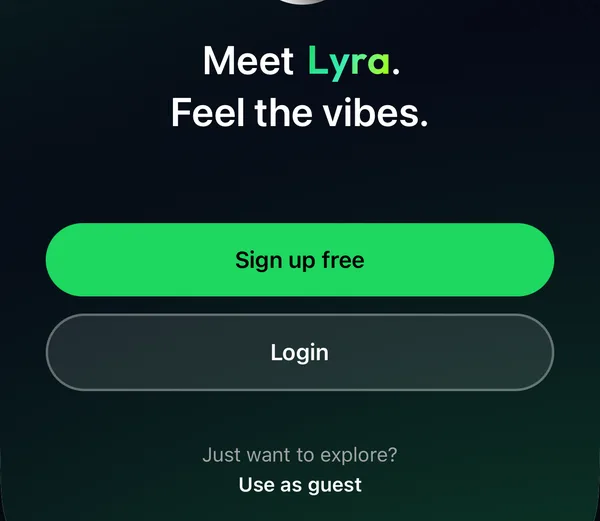
Tap Use as guest
Lyra opens on Home, ready to play. No email, password or payment details are needed.
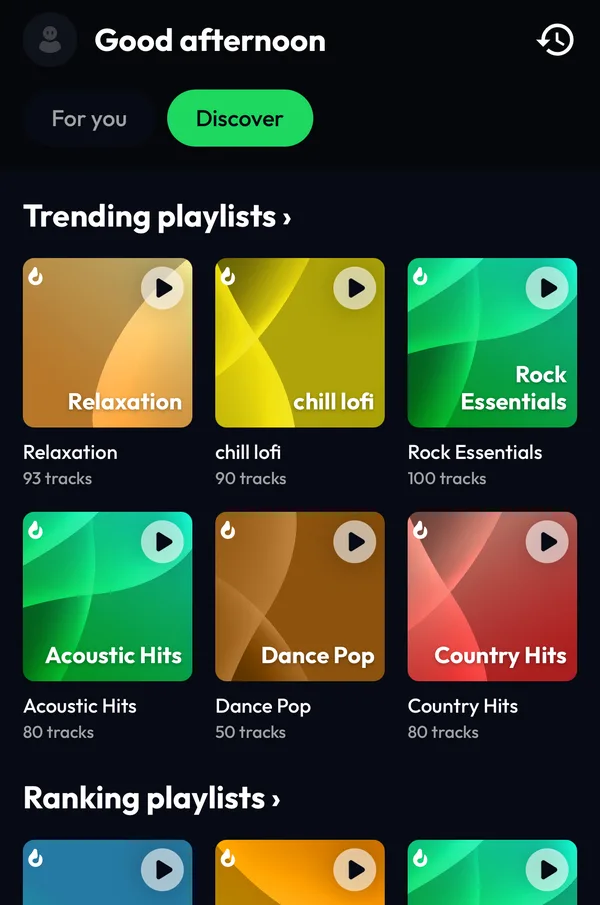
Build your library
Search for songs, albums, podcasts and radio, save what you like, create playlists or import them from other services, just as you would with an account.
Differences by device
iPhone and Android
Use as guest is on the welcome screen of both apps.
Web player
The web player at listen.lyramusic.app can also be used as a guest.
Good to know
- As a guest, your library belongs to that app. Create an account if you want to find it on your other devices.
- If you create an account later, the library you built as a guest carries over to it.
If something goes wrong
- I can't see Use as guest
- It's at the bottom of the welcome screen, under “Just want to explore?”. On small screens, scroll down a little.
Frequently asked questions
Is guest mode free?
Yes. Using Lyra as a guest is free.
Can I import playlists as a guest?
Yes. Importing from Spotify, YouTube, Deezer and the other supported sources works without an account.
What happens to my library if I sign up?
It carries over: the songs and playlists you saved as a guest stay in your library.