How to set a sleep timer in Lyra
Updated on
Open the player by tapping the song at the bottom of the screen, tap ⋯ and choose Sleep timer. Set the hours and minutes and tap Set timer, or tap End of track to stop when the current song ends. When the time is up, Lyra pauses the music.
Step by step
Open the player
Play a song, then tap it in the bar at the bottom of the screen to open the full player.
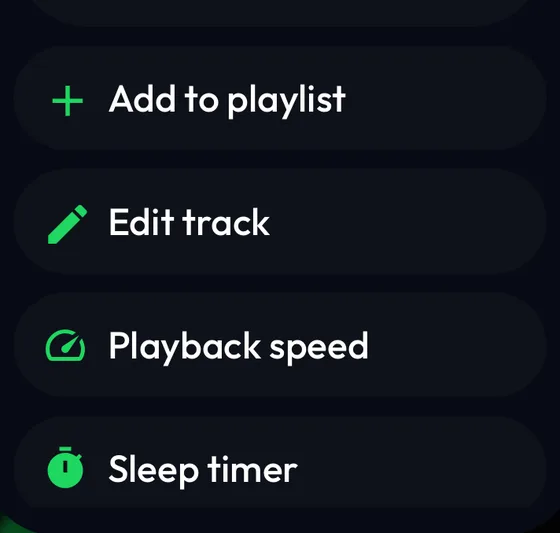
Tap ⋯ and choose Sleep timer
In the player, tap ⋯ next to the song title. Sleep timer is near the bottom of the menu.
Choose how long
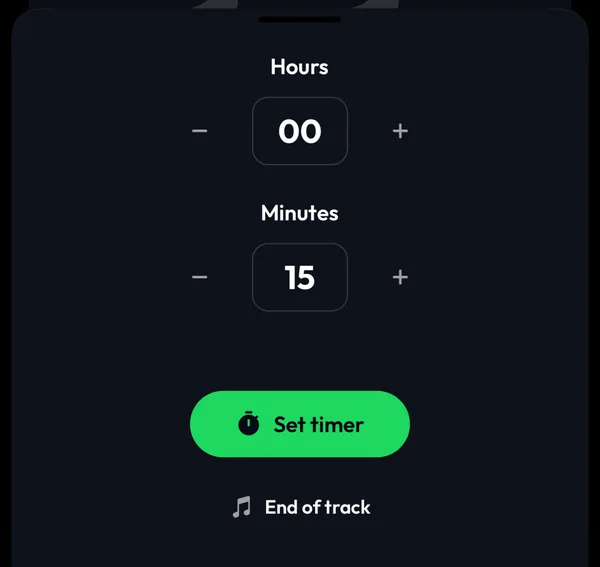
Use − and + under Hours and Minutes to set the time, then tap Set timer. To stop when the song that's playing ends, tap End of track instead.
Check or cancel the timer
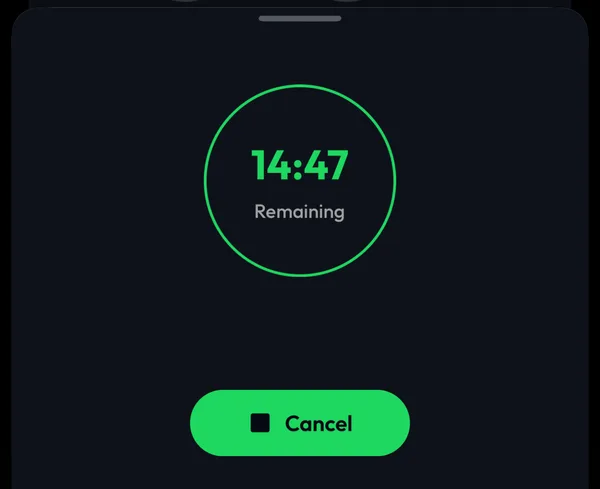
Open Sleep timer again to see the time remaining. Tap Cancel to turn it off.
Differences by device
iPhone
The steps and screenshots on this page come from the Lyra iPhone app, used as a guest.
Android
Sleep timer is in the same place: the ⋯ menu of the full player.
Good to know
- When the time is up, Lyra pauses the music. The song stays in the player, so you can carry on from where it stopped.
- To change a running timer, tap Cancel and set a new one.
If something goes wrong
- I can't find Sleep timer
- It's in the menu of the full player, not in the ⋯ menu of a song in a list. Open the player first by tapping the song at the bottom of the screen.
- The music kept playing
- Open Sleep timer to check that a timer is running and how much time is left.
Frequently asked questions
Is the sleep timer free?
Yes. It works on the free plan, also without an account.
Can Lyra stop at the end of a song?
Yes. Tap End of track instead of Set timer.