How to import a Youtify playlist into Lyra
Updated on
Lyra imports Youtify playlists from their exported .json file. In Youtify, open the playlist and tap the export button, then pick Lyra or save the file. In Lyra, go to Library → Import playlist → Import from Youtify → Select Playlist File, then tap Import. The playlist takes the name of the file.
Step by step
Export the playlist from Youtify
In Youtify, open the playlist and tap the export button. Pick Lyra to send it straight to Lyra, or save the .json file.
Open Import from Youtify in your Lyra library
If you saved the file, open Lyra, tap Library, then the Import playlist tile (or the + button at the top) and choose Import from Youtify.
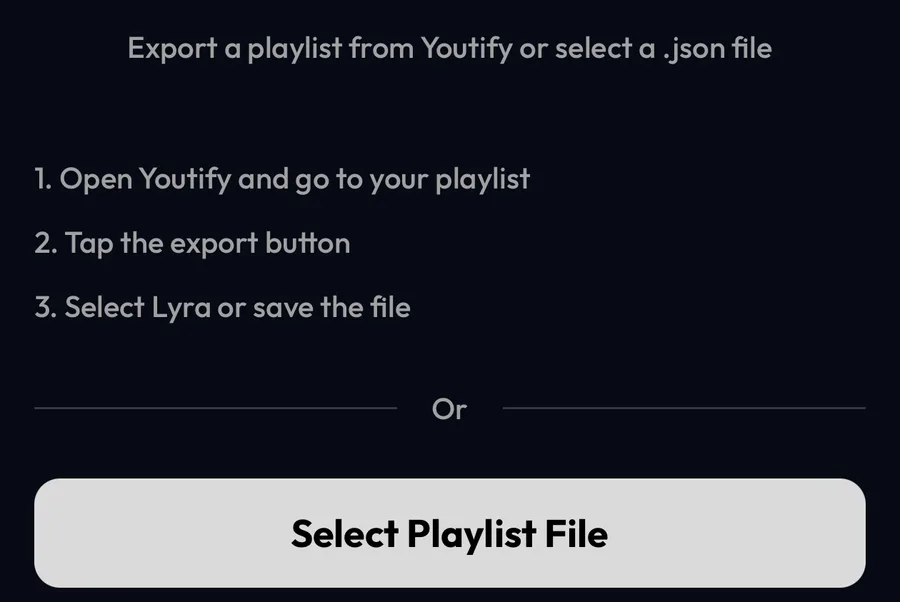
Select the .json file
Tap Select Playlist File and pick the file exported from Youtify. Lyra shows the playlist with its songs.

Tap Import
Tap Import: the playlist is added to the top of your Library, with a cover made by Lyra.

Differences by device
iPhone
The steps and screenshots on this page come from the Lyra iPhone app, used as a guest.
Android and desktop
Import from Youtify is in the same place; pick the .json file from your device.
Good to know
- Only .json files exported from Youtify can be imported.
- The new playlist is named after the file: rename the file first if you want a different name.
If something goes wrong
- “Invalid Youtify playlist file”
- The file isn't a Youtify export, or it was changed. Export it from Youtify again and pick the new file.
Frequently asked questions
Do I need a Youtify account?
No. Lyra only needs the exported .json file.
Is importing free?
Yes. Importing playlists doesn't require Lyra Premium or a Lyra account.
Youtify is a trademark of its respective owner. Lyra Music is not affiliated with, sponsored or endorsed by Youtify.