How to listen offline on Lyra with your own music files
Updated on
In Lyra, offline listening works with the music files you own. Open Library, tap Import Songs and choose From Device, or Google Drive, Dropbox, OneDrive, Yandex Disk or Box. Lyra copies the files into the app, so they play without a connection. Songs from Lyra's streaming catalogue can't be downloaded.
Step by step
Have your music files ready
Put the songs you own, as audio files such as MP3 or M4A, in the Files app on iPhone, in your phone's storage on Android, or in a Google Drive, Dropbox, OneDrive, Yandex Disk or Box account.
Open Import Songs in your library
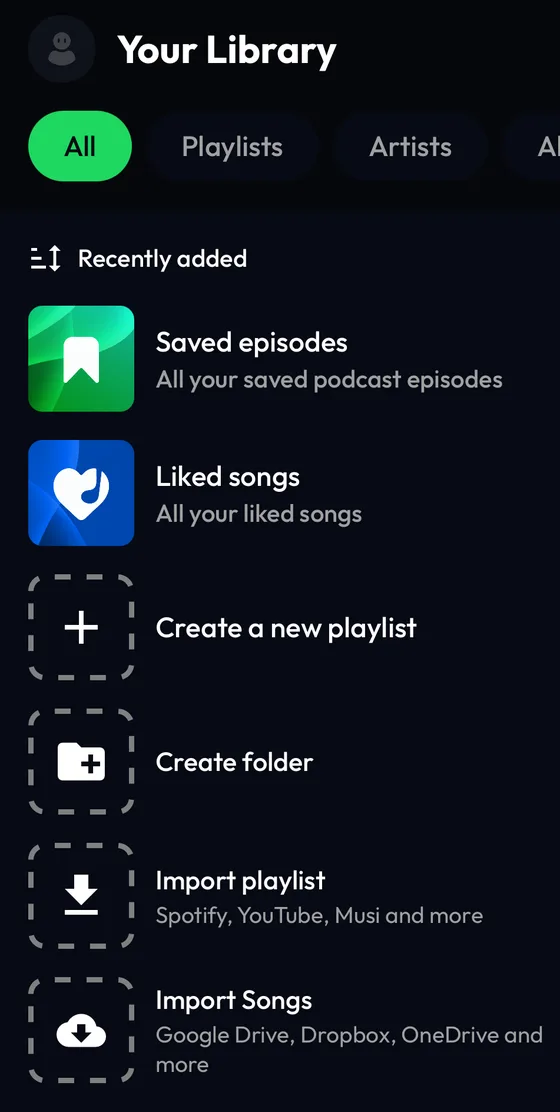
Tap Library at the bottom of the screen, then the Import Songs tile (Google Drive, Dropbox, OneDrive and more). The + button at the top of the Library has the same entry.
Choose where your files are
From Device opens your phone's file picker. To use a cloud drive, tap its name and sign in to that service the first time; Lyra then shows its folders so you can pick files.
Select the songs
Pick one or more files. On Android, Lyra asks how to import them: Copy to app keeps a copy inside Lyra, Link from device plays the original file where it is.
Play them, even offline
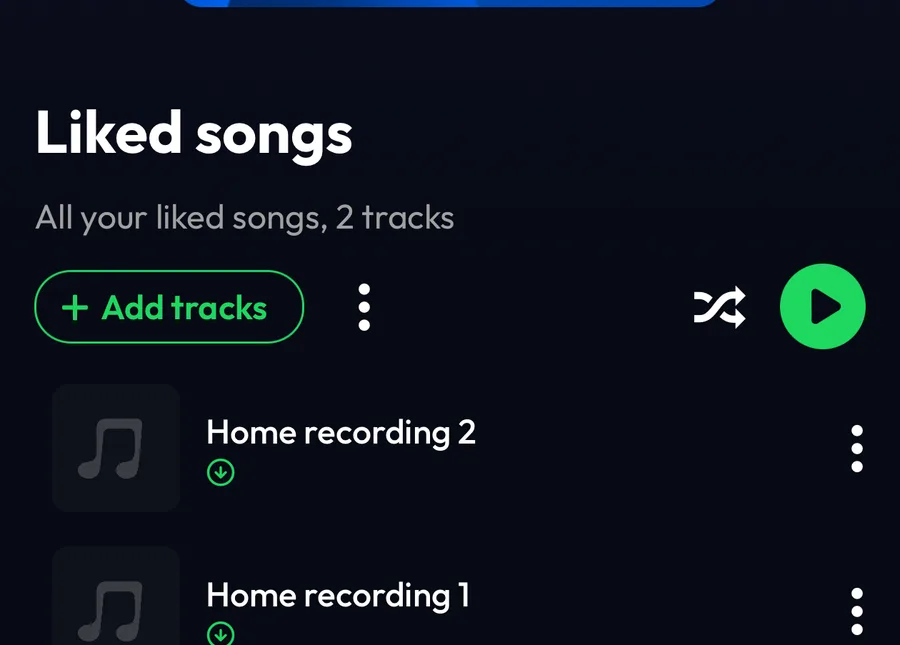
When the import is done, the songs are in Liked songs in your Library, each with a small download mark: they are stored on your device and play without an internet connection.
Differences by device
iPhone
Files come from the Files app or from a cloud drive, and Lyra always copies them into the app.
Android
Choose Copy to app to keep the song playable even if you move or delete the original, or Link from device to save space by playing the original file.
Desktop apps and web player
On Mac, Windows and Linux you can import files from your computer; cloud drives are available in the mobile apps only. The web player at listen.lyramusic.app can't import songs.
Good to know
- Only your own files play offline. Songs from Lyra's catalogue are streamed and can't be downloaded.
- Imported files stay on the device you imported them on and aren't uploaded to Lyra's servers, so import them again on each device.
- Files from a cloud drive are downloaded during the import, so you need a connection for that step only.
- Lyra reads the title and artist from the file's tags; a file without tags shows its file name.
If something goes wrong
- The import seems to take long
- Files from a cloud drive are downloaded one by one. Keep Lyra open until it tells you how many songs were imported.
- A song shows its file name instead of the title
- The file has no title or artist tags. Add them with a tag editor and import the file again.
- A linked song stopped playing (Android)
- The original file was moved or deleted. Import it again and choose Copy to app.
- I can't find Google Drive or Dropbox in the desktop app
- Cloud drives are available in the iPhone and Android apps. On desktop, import the files from your computer.
Frequently asked questions
Can I download songs from Lyra's catalogue to listen offline?
No. Catalogue songs are streamed and can't be downloaded. To listen offline, import music files you own.
Are my files uploaded anywhere?
No. Imported files are processed on your device and are never uploaded to Lyra's servers.
Do I need a Lyra account or Premium?
No. Importing your own songs works as a guest and on the free plan.
Which file formats can I import?
Common audio files such as MP3 and M4A.
Google Drive is a trademark of Google LLC, Dropbox of Dropbox, Inc., OneDrive of Microsoft Corporation, Yandex Disk of Yandex LLC and Box of Box, Inc. Lyra Music is not affiliated with, sponsored or endorsed by any of them.