How to import a YouTube or YouTube Music playlist into Lyra
Updated on
Open Lyra, go to Library, tap Import playlist and choose Import from YouTube. Paste the link of a public YouTube or YouTube Music playlist, tap Load playlist and then Import: Lyra copies it into your library as a playlist you can edit. It's free and works without a Lyra account.
Step by step
Copy the playlist link
On YouTube or YouTube Music, open the playlist and use Share → Copy link. Links like youtube.com/playlist?list=… and music.youtube.com/playlist?list=… both work. The playlist must be public.
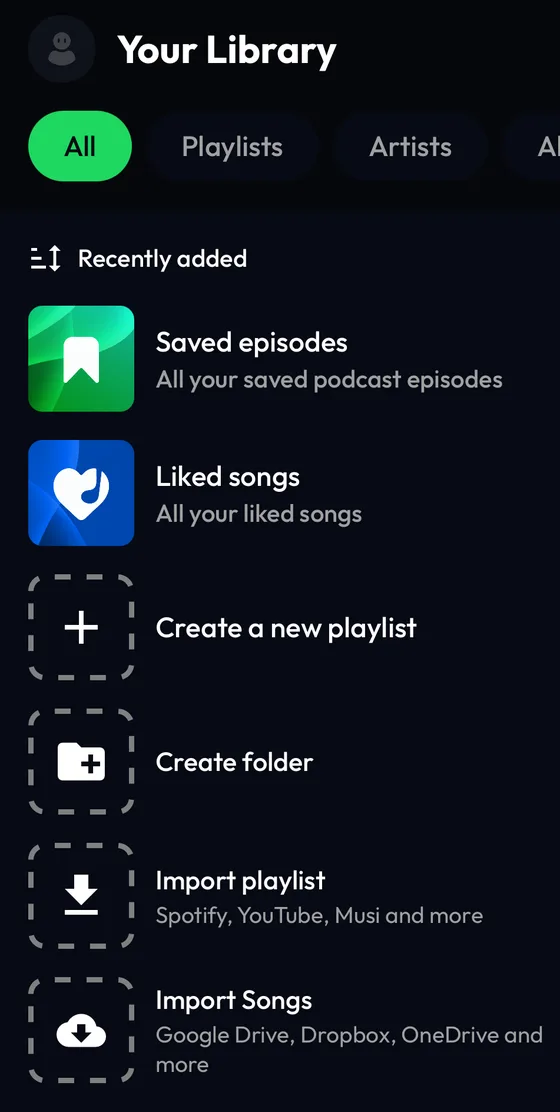
Open Import playlist in your Lyra library
In Lyra, tap Library, then the Import playlist tile (or the + button at the top) and choose Import from YouTube.
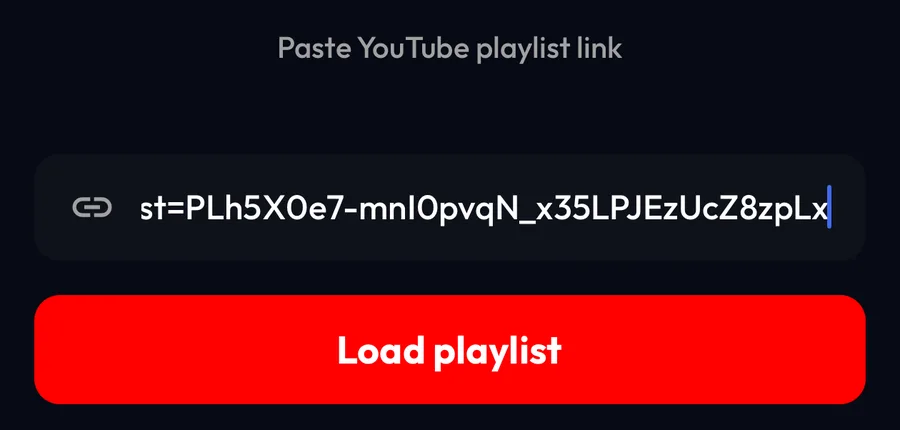
Paste the link and load the playlist
Tap the field Paste YouTube playlist link, paste the link and tap Load playlist.
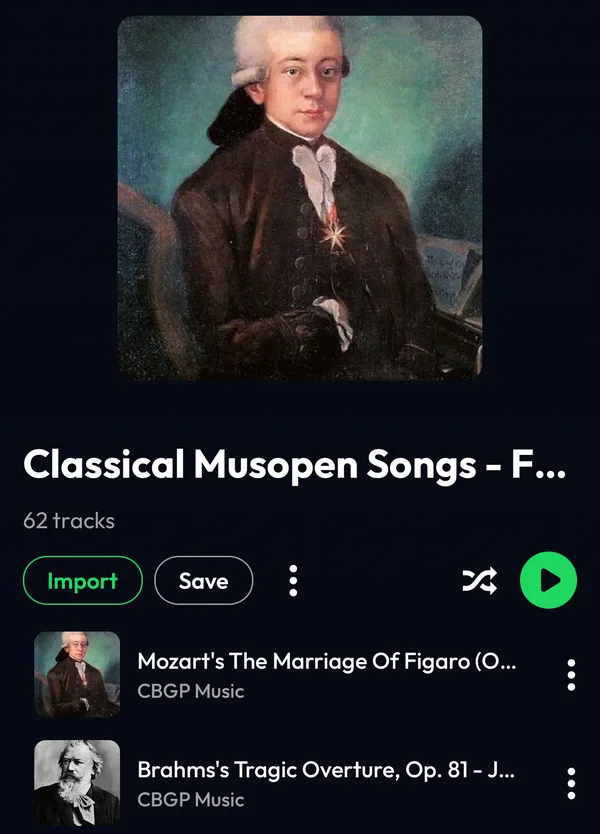
Check the preview and tap Import
Lyra shows the playlist with its songs. Import makes your own copy; Save only adds a link that follows the original playlist.
Find it in your library
When the import is done, the playlist appears at the top of your Library. From its ⋯ menu you can edit it, add songs or sort them.

Differences by device
iPhone
The steps and screenshots on this page come from the Lyra iPhone app, used as a guest.
Android
The path is the same: Library → Import playlist → Import from YouTube.
Web player
Importing from other services isn't available on the web player at listen.lyramusic.app: open the mobile or desktop app to import.
Good to know
- Only public playlists can be imported. If yours is private, make it public on YouTube, import it, then set it back to private.
- An import is a one-time copy: videos added to the playlist later don't appear in Lyra. Import it again to update it.
- Videos that aren't songs, or that are no longer available, may be skipped.
If something goes wrong
- “This playlist is private”
- Lyra can't see the playlist. Make it public on YouTube, import it, then make it private again.
- “Invalid YouTube link”
- The link must point to a playlist, so it has to contain list= (for example youtube.com/playlist?list=…). A link to a single video won't work.
- “Error importing playlist” or “An error occurred”
- Check your internet connection and try again.
- The playlist has fewer songs than on YouTube
- Unavailable or deleted videos are skipped. For long playlists, wait until the import has finished before leaving the screen.
Frequently asked questions
Do I need a Google account?
No. Lyra reads the public playlist from its link; you don't sign in to YouTube to import it.
Does it work with YouTube Music links?
Yes. Both music.youtube.com and youtube.com playlist links work.
Is importing free?
Yes. Importing playlists doesn't require Lyra Premium or a Lyra account.
YouTube and YouTube Music are trademarks of Google LLC. Lyra Music is not affiliated with, sponsored or endorsed by Google.